
An Advanced Git Tutorial: Lessons from a Real-World Versioning Crisis

Ready to transform your data strategy with cutting-edge solutions?
- I was working on a large content repository on Windows, and I needed to version some new work - campaign assets, workshop content, LinkedIn job descriptions, and some file deletions. Simple enough, right? What followed was a two-day journey through some of Git's more obscure corners.
The Setup
I was working on a large content repository on Windows, and I needed to version some new work - campaign assets, workshop content, LinkedIn job descriptions, and some file deletions. Simple enough, right? What followed was a two-day journey through some of Git’s more obscure corners.
Chapter 1: The Selective Commit
My working directory had ~18 groups of changes - modified files, deleted files, and new untracked folders. I didn’t want to commit everything. Some were temp files, some were scratch scripts, some weren’t ready.
The principle: Never use git add -A or git add . blindly. I listed everything, categorized it, and let the user pick exactly what to stage.
git status # See the full picture
git add file1 file2 dir/ # Stage only what’s needed
Why this matters: In a shared repo, accidentally committing temp files, credentials, or half-finished work creates noise and potential security risks. Selective staging is a discipline, not a preference.
Chapter 2: The Lock File Ambush
My first git add failed:
error: open(“~$workshop-1-walkthrough.xlsx”): Permission denied
fatal: adding files failed
The ~$ prefix is Excel’s lock file - it exists while the file is open and is locked by the Excel process. Git tried to index it and couldn’t.
The fix: Close Excel, then re-run the add. But there’s a deeper lesson - these lock files should never be committed. A proper .gitignore would have:
~$*
Key insight: git add
Chapter 3: The Cross-Platform Filename Trap
After committing, I needed to sync with the remote. I ran:
git pull origin main
And got:
error: invalid path ‘DBX*Enqurious Hackathon.png’
error: invalid path ‘Enqurious * DBX Hackathon.png’
error: invalid path ‘Production GenAI - CI:CD, Memory…png’
Merge with strategy ort failed.
What happened: Someone (likely on macOS) had pushed files with * and : in their names. macOS and Linux allow these characters. Windows does not - they’re reserved by NTFS. Git’s merge strategy (ort) tries to update the working tree, and when it can’t create these files, the entire merge aborts.
Critical detail: This isn’t just a checkout problem. Both git pull (merge) and git rebase failed because both need to manipulate the working tree:
git pull origin main # Failed - can’t create files
git stash && git rebase origin/main # Also failed - same reason
Even rebase, which I tried hoping it would handle things differently, failed at the detach HEAD step because it needed to check out the remote’s state first.
Chapter 4: The Sparse-Checkout Detour
I tried using sparse-checkout to exclude the problematic directories entirely:
git sparse-checkout init - cone
git sparse-checkout set ‘/*’ ‘!gen-ai/gen-ai-hackahton/…’
This failed too. Cone mode (the modern, performant sparse-checkout mode) doesn’t support negation patterns (!). It only works with directory inclusion - you tell it which directories you want, not which to exclude. For a repo with dozens of top-level directories, this was impractical.
I could have switched to non-cone mode (the older pattern-based mode), which does support negation:
git sparse-checkout init - no-cone
Then edit .git/info/sparse-checkout with patterns
But at this point, the approach was getting complex and fragile. I abandoned it.
Lesson: Sparse-checkout is powerful for working with monorepos where you genuinely only need a subset of the code. It’s not the right tool for “skip 3 problematic files during a merge.” It changes how your entire working tree behaves and can create confusing states if not managed carefully.
Chapter 5: The Option We Had (But Didn’t Need)
There was always a nuclear option available:
git -c core.protectNTFS=false pull origin main
core.protectNTFS is a Git safety feature that prevents checking out files with names that are invalid on Windows. Setting it to false tells Git: “Go ahead with the merge. If you can’t create a file on disk, just skip it - but record it correctly in Git’s object database.”
This is safe for the repository’s integrity - Git’s internal history remains correct. The files simply won’t exist in your working directory. But understandably, temporarily disabling a safety feature made us cautious.
Chapter 6: The Clean Resolution
The real fix was the simplest: the teammate who pushed those files renamed them (removing * and : characters). After that:
git fetch origin main # Download remote state (safe, changes nothing locally)
git pull origin main # Merge - now works cleanly
git push origin main # Push our local commits
Why fetch before pull? git fetch is read-only - it downloads remote refs and objects but doesn’t touch your working tree or branches. I used it throughout this process to inspect what the remote had without risking any local state changes. git pull is essentially git fetch + git merge combined.
Key Takeaways
1. git fetch is your best friend
When things are uncertain, fetch first, inspect, then decide. It’s the only network operation in Git that’s completely safe.
git fetch origin main
git log - oneline HEAD..origin/main # What do they have that I don’t?
git log - oneline origin/main..HEAD # What do I have that they don’t?
2. Diverged branches are normal
“Your branch and remote have diverged” sounds scary but it’s just: you have commits they don’t, and they have commits you don’t. A merge or rebase brings them together.
3. Cross-platform repos need filename discipline
If your team uses Windows, macOS, and Linux, establish naming rules. Avoid: * : ” < > | ? \ and trailing spaces/dots. Add a pre-commit hook to enforce this:
.githooks/pre-commit
if git diff - cached - name-only | grep -E ‘[*:”<>|?\]’; then
echo “Error: Filenames contain characters invalid on Windows”
exit 1
fi
4. Know your escape hatches (and their tradeoffs)
| Situation | Tool | Risk Level |
| Inspect remote | git fetch |
None |
| Save work temporarily | git stash |
Low |
| Skip NTFS checks | core.protectNTFS=false |
Low (history safe, files missing locally) |
| Exclude directories | sparse-checkout |
Medium (changes working tree behavior) |
| Overwrite remote | git push --force |
High (destroys others’ work) |
5. Fix root causes, not symptoms
We could have hacked around the filename issue with config flags and sparse-checkout. But the correct fix was renaming the files. Every workaround adds complexity and potential for future confusion. When possible, fix the actual problem.
You Might Also Like
Generative AI in data engineering: what Gartner's Data Engineering 2.0 means, how AI agents now write pipeline code, and why data engineers matter more.
Learn to build governed RAG pipelines on Databricks using Agent Bricks and Unity Catalog. Discover the Knowledge Assistant, its 70% quality boost, and key limits.

Storage account keys and mount points give every user in a Databricks workspace the same shared access to ADLS, with no audit trail. Here's why teams are moving to Storage Credentials and External Locations instead.
89% of enterprise AI pilots never reach production. Data integration, governance gaps, and silos are why. See how Snowflake Cortex AI fixes the root cause.
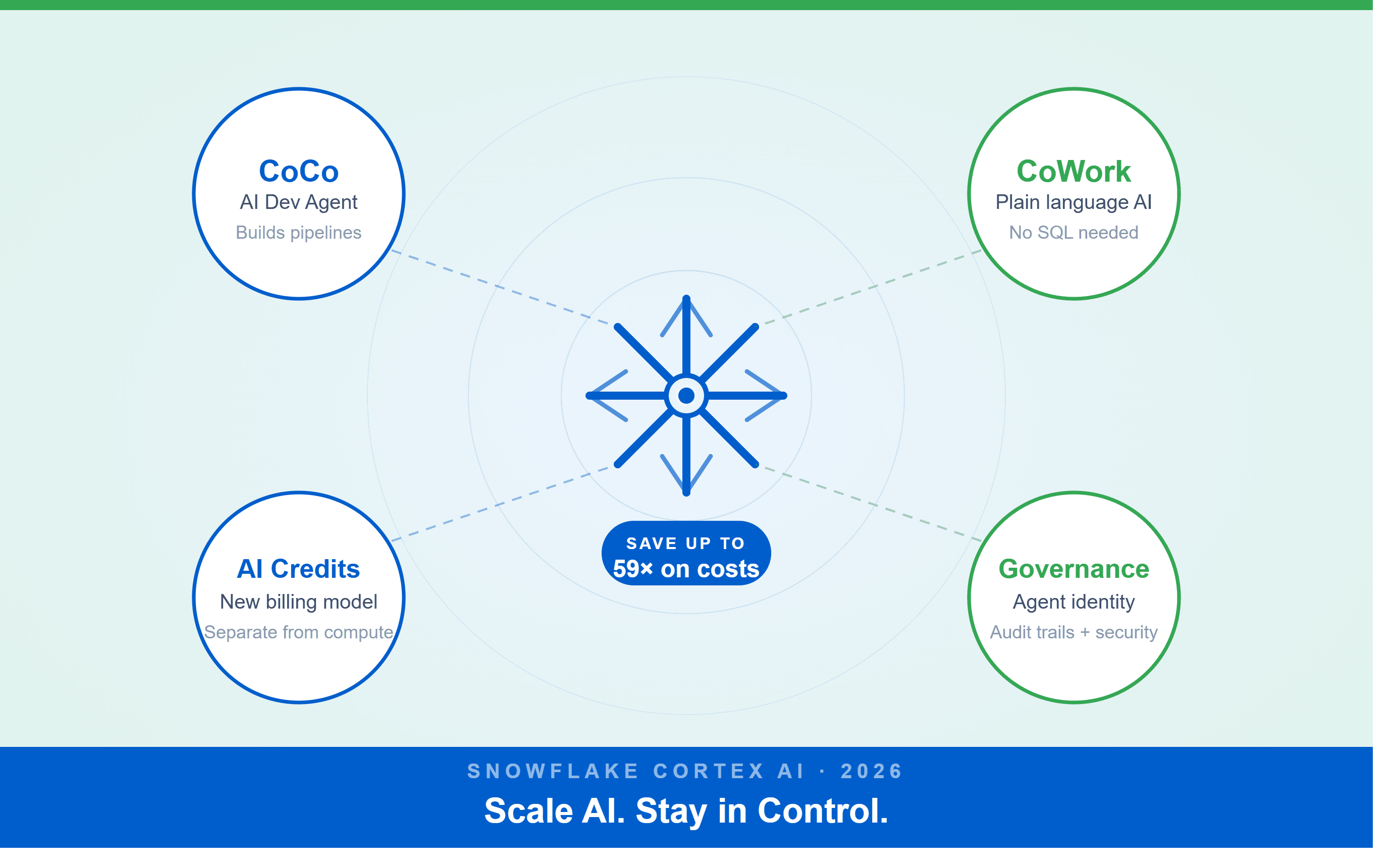
A Snowflake Summit 2026 benchmark revealed a 59x cost gap — open-source models at 440 credits vs. frontier models at 26,000 credits for identical workloads. Learn how CoCo, CoWork, AI Credits, and Cortex Training change enterprise AI strategy.
How a data engineering team replaced manual pipeline work with natural language prompts, using Claude Code and the Databricks AI Dev Kit.
Six errors, 6 hours of debugging, and the permission checklist that finally made Databricks Apps + Genie work. The full lessons-learned guide.
Your Claude Code session isn't lost. It's on disk, in a folder /resume isn't scanning. Here's how to find any session in 30 seconds, with the exact commands.
Scenario based learning replaces tutorials with realistic operational scenarios where engineers develop the hands on judgment classroom instruction cannot produce. How it works and why it matters.
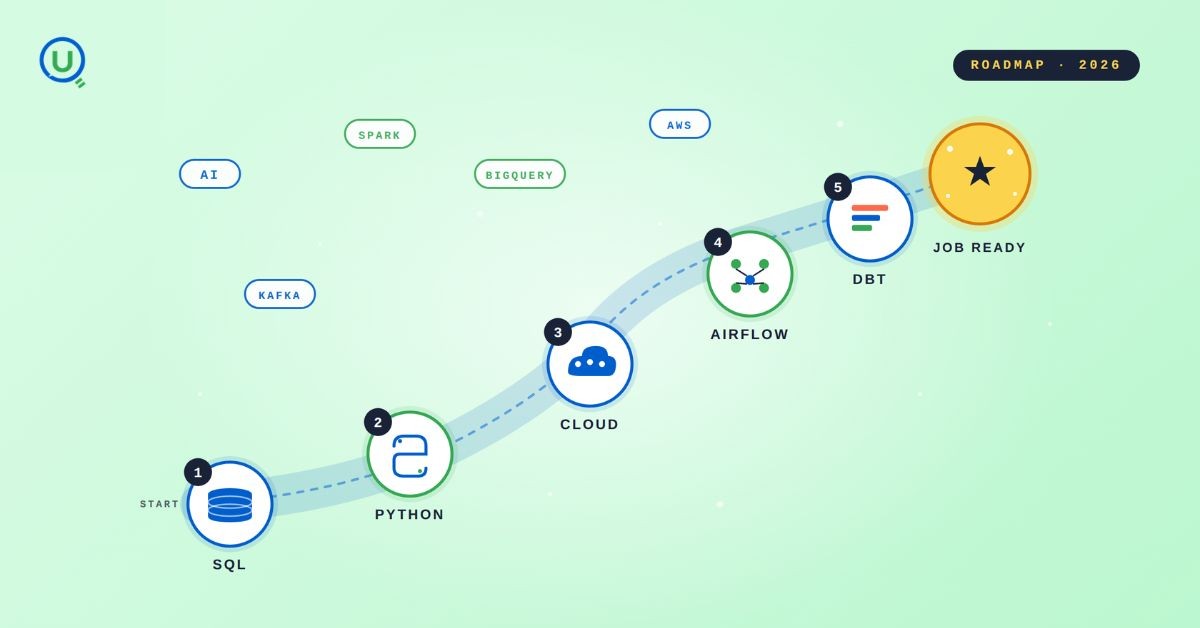
The 2026 data engineering roadmap. SQL, Python, cloud, Airflow, dbt, streaming. What companies actually hire for and how to build a portfolio that gets shortlisted.
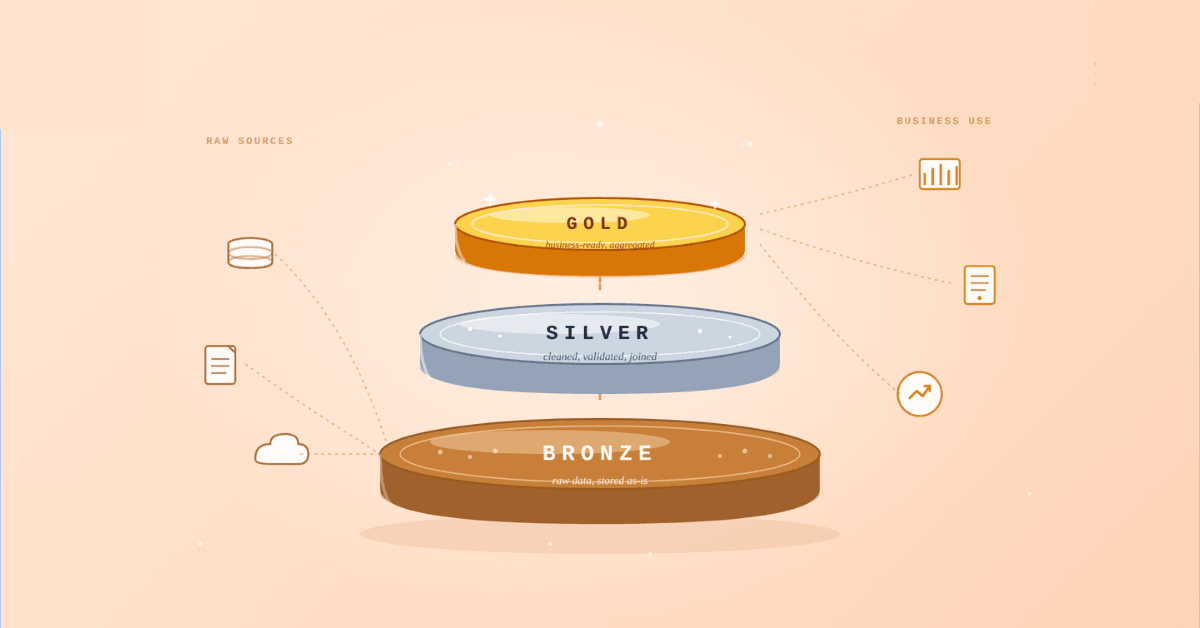
Medallion Architecture splits your data pipeline into Bronze, Silver, and Gold layers so a small business change never forces a full rebuild. Here's why it works.
New engineers shouldn't learn Docker like they're defusing a bomb. Here's how we created a fear-free learning environment—and cut training time in half." (165 characters)

A complete beginner’s guide to data quality, covering key challenges, real-world examples, and best practices for building trustworthy data.
Explore the power of Databricks Lakehouse, Delta tables, and modern data engineering practices to build reliable, scalable, and high-quality data pipelines."
A real-world Terraform war story where a “simple” Azure SQL deployment spirals into seven hard-earned lessons, covering deprecated providers, breaking changes, hidden Azure policies, and why cloud tutorials age fast. A practical, honest read for anyone learning Infrastructure as Code the hard way.
Data doesn’t wait - and neither should your insights. This blog breaks down streaming vs batch processing and shows, step by step, how to process real-time data using Azure Databricks.
This blog talks about Databricks’ Unity Catalog upgrades -like Governed Tags, Automated Data Classification, and ABAC which make data governance smarter, faster, and more automated.

Tired of boring images? Meet the 'Jai & Veeru' of AI! See how combining Claude and Nano Banana Pro creates mind-blowing results for comics, diagrams, and more.
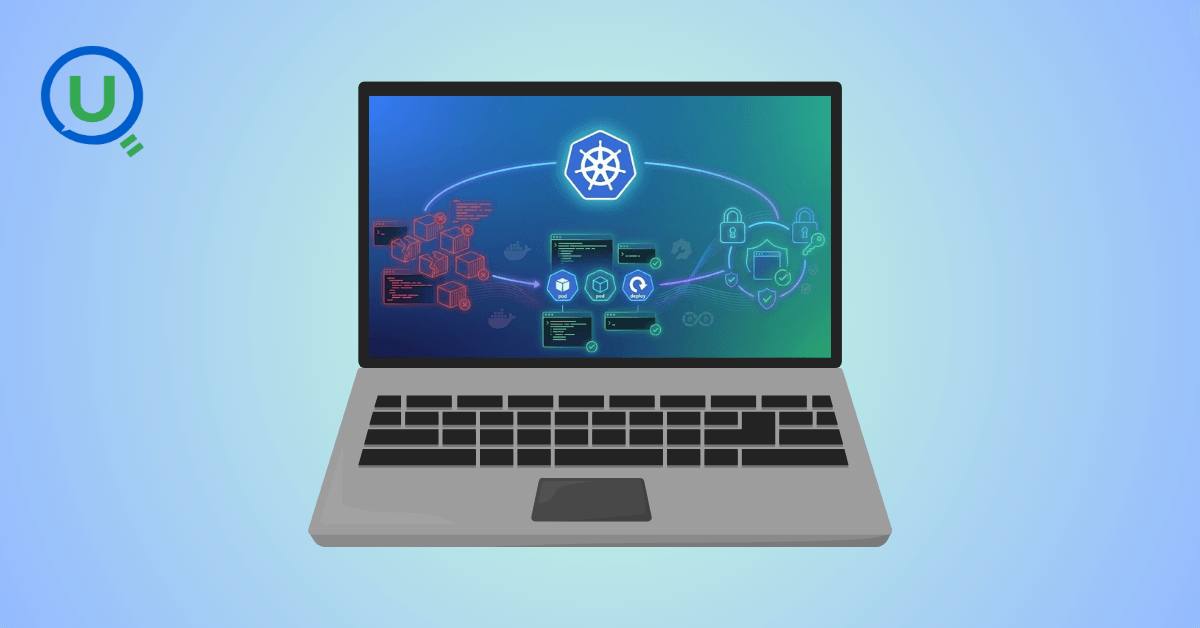
What I thought would be a simple RBAC implementation turned into a comprehensive lesson in Kubernetes deployment. Part 1: Fixing three critical deployment errors. Part 2: Implementing namespace-scoped RBAC security. Real terminal outputs and lessons learned included
This blog walks you through how Databricks Connect completely transforms PySpark development workflow by letting us run Databricks-backed Spark code directly from your local IDE. From setup to debugging to best practices this Blog covers it all.
A simple ETL job broke into a 5-hour Kubernetes DNS nightmare. This blog walks through the symptoms, the chase, and the surprisingly simple fix.
Master the bronze layer foundation of medallion architecture with COPY INTO - the command that handles incremental ingestion and schema evolution automatically. No more duplicate data, no more broken pipelines when new columns arrive. Your complete guide to production-ready raw data ingestion

This blog talks about the Power Law statistical distribution and how it explains content virality

This blog explains how Apache Airflow orchestrates tasks like a conductor leading an orchestra, ensuring smooth and efficient workflow management. Using a fun Romeo and Juliet analogy, it shows how Airflow handles timing, dependencies, and errors.
The blog contains the journey of ChatGPT, and what are the limitations of ChatGPT, due to which Langchain came into the picture to overcome the limitations and help us to create applications that can solve our real-time queries

An account of experience gained by Enqurious team as a result of guiding our key clients in achieving a 100% success rate at certifications

This blog delves into the capabilities of Calendar Events Automation using App Script.
Dive into the fundamental concepts and phases of ETL, learning how to extract valuable data, transform it into actionable insights, and load it seamlessly into your systems.