
The Day I Discovered Databricks Connect
Ready to transform your data strategy with cutting-edge solutions?
- This blog walks you through how Databricks Connect completely transforms PySpark development workflow by letting us run Databricks-backed Spark code directly from your local IDE. From setup to debugging to best practices this Blog covers it all.
You know those moments in your career when something small changes… and suddenly your entire workflow feels like it leveled up?
That was me the day I stopped copy-pasting PySpark code into Databricks notebooks and discovered Databricks Connect.
One minute, I was juggling browser tabs, restarting clusters, uploading notebooks, and whispering motivational quotes to my Spark jobs.
The next minute, I was running my Databricks code directly from VS Code, with full debugging, instant feedback, and zero browser drama.
It felt like I had just unlocked a secret door in Databricks nobody told me about.
And once I saw what Databricks Connect could do, there was no going back.

The Problem: The Relatable Struggle
I was working on a moderately large PySpark job. Nothing fancy - a few joins, some aggregations, a sprinkle of window functions (because I feel powerful when I use them).
I wrote the logic locally in VS Code, as usual.
Then I copied it into Databricks notebook.
Ran it.
Waited.
Got an error.
Returned to VS Code.
Fixed the logic.
Copied back.
Ran again.
Waited again.
Repeat. For. Hours.
My development workflow looked messy and confusing with so much of unnecessary repetition.
At one point, I genuinely considered printing the entire stack trace and framing it on my wall out of frustration.
That’s when a colleague casually mentioned:
And my response was:
Yes. That was the moment.
The moment I realized I had been cooking in the kitchen when there was home delivery available the whole time.
How Databricks Connect helps
Once I finally looked into it, I realized:
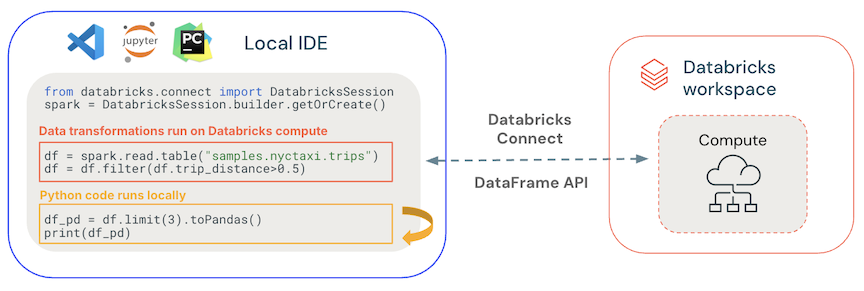
🔥 Databricks Connect allows you to write and run Spark code from your local machine, while using your Databricks cluster as the backend.
Meaning:
- You write code locally
- You run code locally
- You debug locally
- You use the Databricks cluster for compute
- You avoid uploading notebooks 200 times
- You stop waiting endlessly for a browser notebook to load
It was everything I didn’t know I needed.
Importance of Databricks Connect
Here’s what changed for me once I started using it:
Faster development
No need to copy and paste code repeatedly.
Local debugging
Debugging PySpark inside VS Code? Yes please.
Use Git like a normal developer
No more exporting notebooks as .dbc or .ipynb.
Run unit tests locally
This alone saved me hours every week.
Still use the full power of your Databricks cluster
Your laptop does the typing.
Databricks does the heavy lifting.
Write once, run anywhere
Local → Databricks
CI/CD → Databricks
Jobs → Databricks
Same codebase. No rewrites.
This is the kind of developer experience that makes you feel in control.
The Best Part: You Can Use Your Favorite IDEs with Databricks

One of the biggest reasons I fell in love with Databricks Connect is this:
- You don’t have to code inside the Databricks notebook anymore.
You can finally use a real IDE.**
Yes - your VS Code.
Yes - your PyCharm.
Yes - your linting, auto-complete, black formatting, debugging, extensions, Git, virtual environments…
ALL of it.
Your workflow becomes as easy as :
Write code locally → Hit Run → Code executes on Databricks cluster → Output appears locally.
- You get full IDE-level debugging
Breakpoints actually pause the Spark job.
Variable explorer works.
Step-through debugging works.
Function-level testing works.
- You can finally use Git properly
Branches, pull requests, pre-commit hooks - everything fits smoothly into your project folder.
No more exporting notebooks, renaming .dbc files, or keeping 17 versions of the same notebook.
- Your development become easy
No browser refreshes.
No notebook disconnections.
No copy-pasting code back and forth.
Just you, your IDE, and your Databricks cluster working in harmony.
Databricks notebooks are great for exploration.
IDE + Databricks Connect is unbeatable for actual development.
Setting Up Databricks Connect
Here’s how I set it up the very first time - and how you can do it in minutes.
1. Install databricks-connect
Make sure your Python version matches your Databricks Runtime version.
Example (for DBR 13.x):
pip install databricks-connect==13.3.*
2. Generate a Personal Access Token
Go to:
User Settings → Developer → Access Tokens → Generate New Token
Copy it once when it appears.
3. Configure Databricks Connect
Run:
databricks-connect configure
You’ll be asked for:
- Databricks Host (your workspace URL)
- Databricks Token
- Cluster ID
- Org ID
- Port (usually 15001)`
You can find Cluster ID from URL:

4. Test the Connection
Run:
python -c "from pyspark.sql import SparkSession; print(SparkSession.builder.getOrCreate().range(5).collect())"
If you see:
[Row(id=0), Row(id=1), Row(id=2), Row(id=3), Row(id=4)]
🎉 Congratulations - your laptop is now talking to your Databricks cluster.
Using Databricks Connect
Once Databricks Connect is installed and configured, you can write and run Spark code from your local machine - inside your favorite IDE like VS Code or PyCharm.
What’s are we trying to achieve here :
- You type the code in your IDE (locally)
- Databricks Connect sends it to your Databricks cluster (remotely)
- The cluster processes the data ( using the powerful DBX cluster )
- The results are sent back and displayed in your IDE terminal
This means - all the power of Databricks, without ever touching the browser.
Example Code (Try This)
Open VS Code or PyCharm, create a Python file such as:
main.py
Paste this code: (in local IDE )
from pyspark.sql import SparkSession

#Start a Spark session using Databricks Connect
spark = SparkSession.builder.getOrCreate()

Run a SQL query directly on Databricks tables
df = spark.sql("SELECT * FROM hive_metastore.default.sales LIMIT 10")

df.show()
Where Will the Results Appear?
The results appear directly in your IDE terminal/output window.
This is what makes Databricks Connect truly effective:
you stay in VS Code / PyCharm, but you’re actually using Databricks cluster compute.
Hence,
✔ You write code locally
Just like normal Python development.
✔ But Databricks runs the heavy computation
Your laptop is only a controller - Databricks cluster does the real work.
✔ Your laptop stays cool
No memory explosion, no 100% CPU usage.
✔ Your development becomes faster
Because you get:
- IntelliSense/autocomplete
- Git integration
- Breakpoints
- Debugging
- Multi-file project structure
And all of this while using Databricks’ backend compute.
📁 Understanding the Folder Structure
One thing that changes when you start using Databricks Connect is how you organize your project.
In Databricks notebooks, everything lives in separate notebook cells.
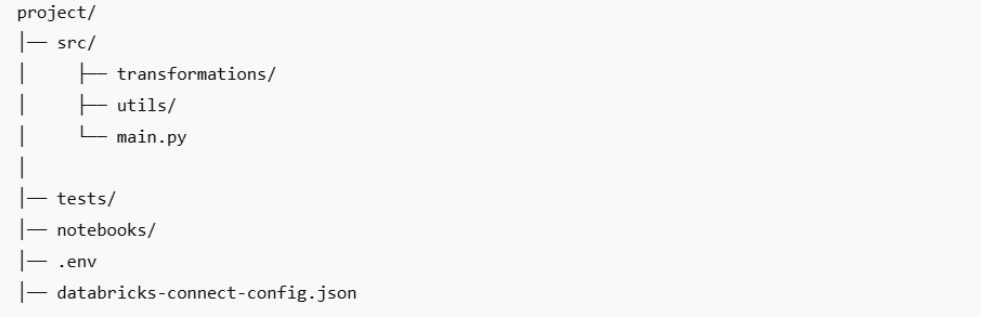
But in a real IDE (VS Code / PyCharm), you finally get to structure your PySpark project like a proper software project.
Here’s a simple folder which is recommended :
⚠️ Things That Commonly Break Databricks Connect
Even though Databricks Connect feels magical, a few small issues can instantly break the setup.
Here are the most common ones - and what to watch out for.
1. Version Mismatches (Most Common)
Databricks Connect only works when versions match.
- Python version
- Databricks Runtime version
- Databricks Connect version
If these don’t align → connection fails.
2. Wrong Workspace URL
Use ONLY the base URL:
✔ https://adb-123456.78.azuredatabricks.net
✘ No ?o=
✘ No #
✘ No Community Edition
3. Cluster Not Running
The cluster must be RUNNING, not starting or terminating.
4. Firewall Blocking Port 15001
Corporate networks often block this port → connection timeout.
Ask IT to allow outbound traffic on 15001.
5. Incorrect DBFS Paths
Use DBFS paths properly:
✔ dbfs:/mnt/bronze/table
✘ /dbfs/mnt/bronze/table
6. Expired Personal Access Token
If things suddenly stop working → check token first.
7. Multiple Python Environments
VS Code may use a different interpreter than the one where Databricks Connect is installed.
Use ONE virtual environment.
8. Local PySpark Installed Before Databricks Connect
This causes conflicts.
Uninstall PySpark → reinstall Databricks Connect.
Best Practices of using Databricks Connect
✔ Use a separate cluster for Databricks Connect
Keeps dev & prod clean.
✔ Keep your code in Git, not notebooks
Notebooks are for exploration.
Projects are for execution.
✔ Do not run massive queries locally
Your logs will explode.
Your cluster will cry.
Use sampling!
✔ Use spark.sql() for quick validation
Perfect for checking dozens of small transformations during development.
Why Databricks Connect is recomended
Databricks Connect didn’t just make me faster.
It made working better.
- I stopped fighting notebooks
- I could debug properly
- I could use my favorite tools (VS Code, Git, linters)
- I could test transformations without attaching myself emotionally to a cluster
Databricks Connect turned Databricks from a “browser tool” into a real development environment.
Today, I run 80% of my work from my laptop, not the workspace.
And every time I see someone copying code into Databricks manually, I smile and think:
“If only they knew…”
Now, you do.
You Might Also Like
Generative AI in data engineering: what Gartner's Data Engineering 2.0 means, how AI agents now write pipeline code, and why data engineers matter more.
Learn to build governed RAG pipelines on Databricks using Agent Bricks and Unity Catalog. Discover the Knowledge Assistant, its 70% quality boost, and key limits.

Storage account keys and mount points give every user in a Databricks workspace the same shared access to ADLS, with no audit trail. Here's why teams are moving to Storage Credentials and External Locations instead.
89% of enterprise AI pilots never reach production. Data integration, governance gaps, and silos are why. See how Snowflake Cortex AI fixes the root cause.
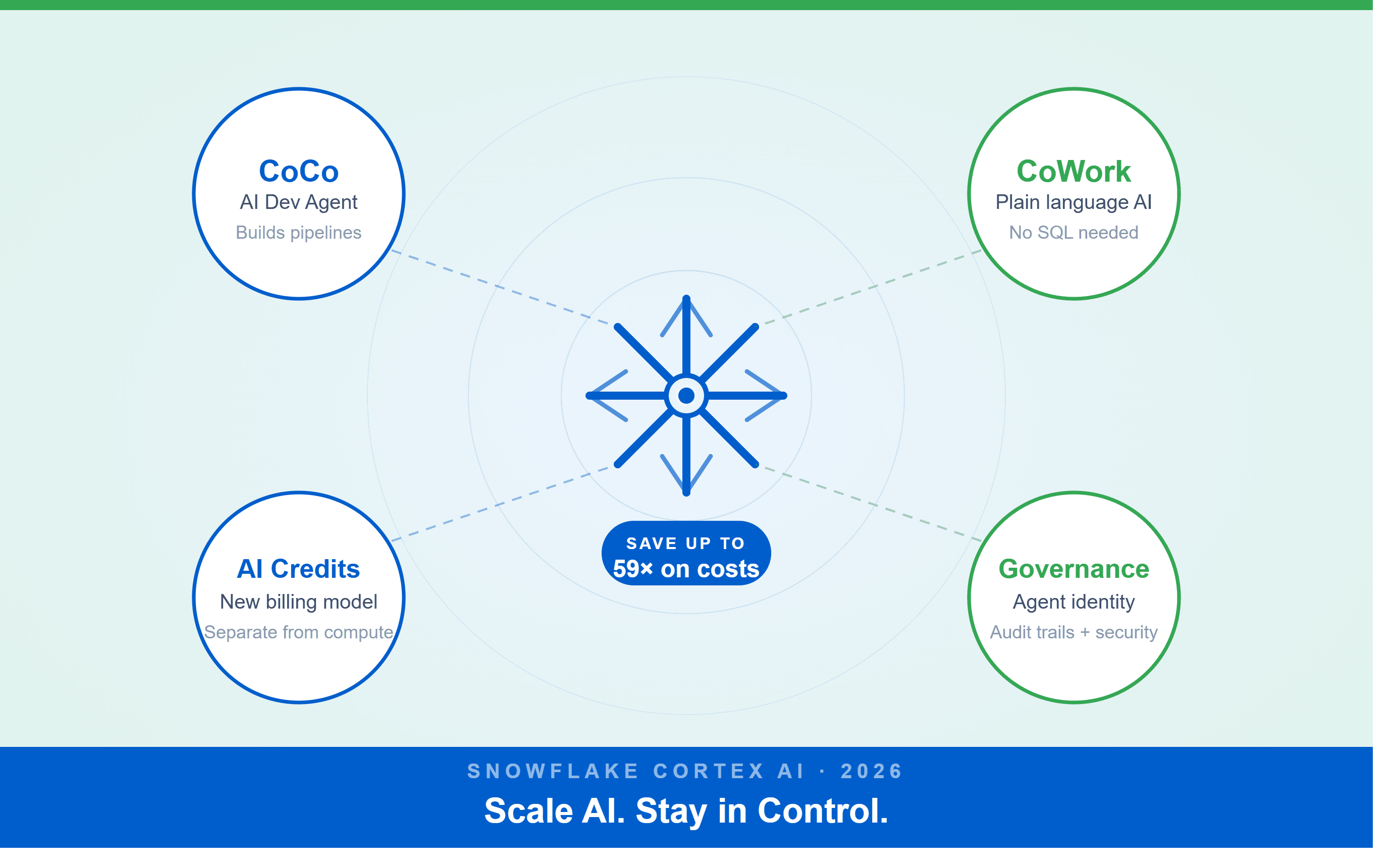
A Snowflake Summit 2026 benchmark revealed a 59x cost gap — open-source models at 440 credits vs. frontier models at 26,000 credits for identical workloads. Learn how CoCo, CoWork, AI Credits, and Cortex Training change enterprise AI strategy.
How a data engineering team replaced manual pipeline work with natural language prompts, using Claude Code and the Databricks AI Dev Kit.
Six errors, 6 hours of debugging, and the permission checklist that finally made Databricks Apps + Genie work. The full lessons-learned guide.
Your Claude Code session isn't lost. It's on disk, in a folder /resume isn't scanning. Here's how to find any session in 30 seconds, with the exact commands.
Scenario based learning replaces tutorials with realistic operational scenarios where engineers develop the hands on judgment classroom instruction cannot produce. How it works and why it matters.
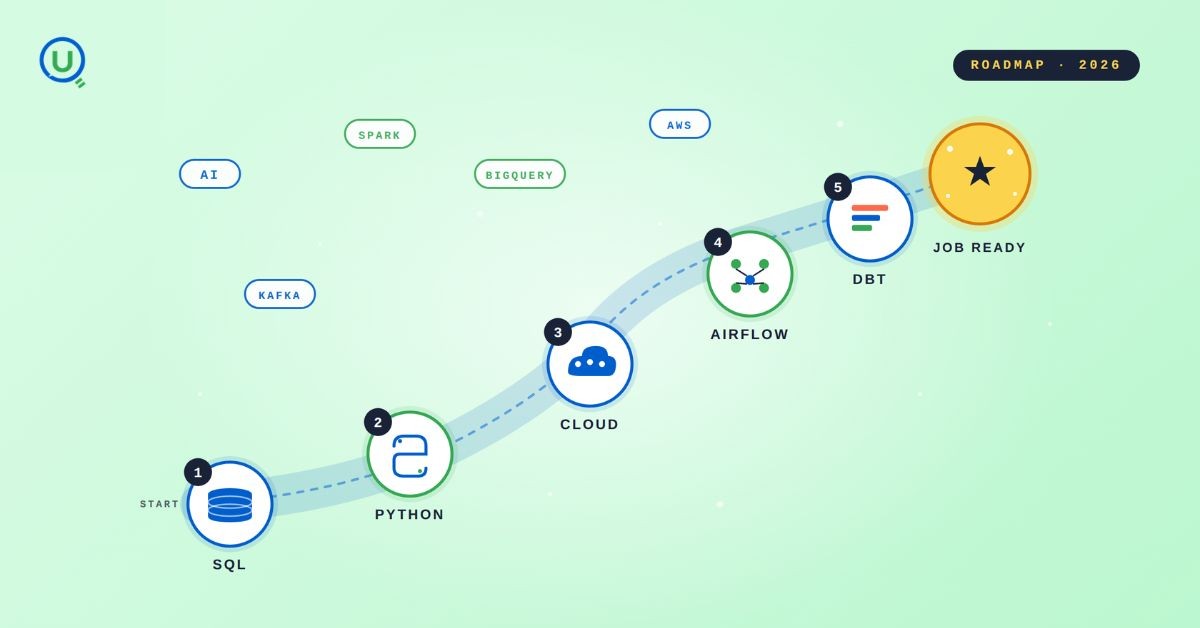
The 2026 data engineering roadmap. SQL, Python, cloud, Airflow, dbt, streaming. What companies actually hire for and how to build a portfolio that gets shortlisted.

Medallion Architecture splits your data pipeline into Bronze, Silver, and Gold layers so a small business change never forces a full rebuild. Here's why it works.

I was working on a large content repository on Windows, and I needed to version some new work — campaign assets, workshop content, LinkedIn job descriptions, and some file deletions. Simple enough, right? What followed was a two-day journey through some of Git's more obscure corners.

New engineers shouldn't learn Docker like they're defusing a bomb. Here's how we created a fear-free learning environment—and cut training time in half." (165 characters)

A complete beginner’s guide to data quality, covering key challenges, real-world examples, and best practices for building trustworthy data.
Explore the power of Databricks Lakehouse, Delta tables, and modern data engineering practices to build reliable, scalable, and high-quality data pipelines."
A real-world Terraform war story where a “simple” Azure SQL deployment spirals into seven hard-earned lessons, covering deprecated providers, breaking changes, hidden Azure policies, and why cloud tutorials age fast. A practical, honest read for anyone learning Infrastructure as Code the hard way.

Data doesn’t wait - and neither should your insights. This blog breaks down streaming vs batch processing and shows, step by step, how to process real-time data using Azure Databricks.

This blog talks about Databricks’ Unity Catalog upgrades -like Governed Tags, Automated Data Classification, and ABAC which make data governance smarter, faster, and more automated.

Tired of boring images? Meet the 'Jai & Veeru' of AI! See how combining Claude and Nano Banana Pro creates mind-blowing results for comics, diagrams, and more.

What I thought would be a simple RBAC implementation turned into a comprehensive lesson in Kubernetes deployment. Part 1: Fixing three critical deployment errors. Part 2: Implementing namespace-scoped RBAC security. Real terminal outputs and lessons learned included

A simple ETL job broke into a 5-hour Kubernetes DNS nightmare. This blog walks through the symptoms, the chase, and the surprisingly simple fix.
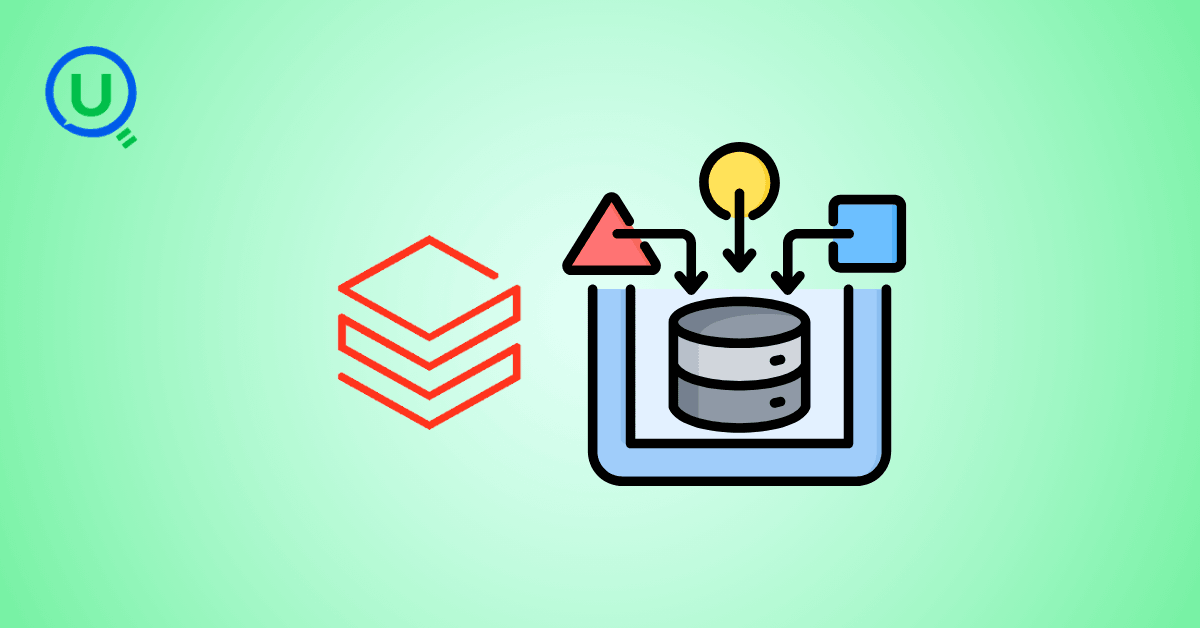
Master the bronze layer foundation of medallion architecture with COPY INTO - the command that handles incremental ingestion and schema evolution automatically. No more duplicate data, no more broken pipelines when new columns arrive. Your complete guide to production-ready raw data ingestion

This blog talks about the Power Law statistical distribution and how it explains content virality

This blog explains how Apache Airflow orchestrates tasks like a conductor leading an orchestra, ensuring smooth and efficient workflow management. Using a fun Romeo and Juliet analogy, it shows how Airflow handles timing, dependencies, and errors.
The blog contains the journey of ChatGPT, and what are the limitations of ChatGPT, due to which Langchain came into the picture to overcome the limitations and help us to create applications that can solve our real-time queries

An account of experience gained by Enqurious team as a result of guiding our key clients in achieving a 100% success rate at certifications

This blog delves into the capabilities of Calendar Events Automation using App Script.
Dive into the fundamental concepts and phases of ETL, learning how to extract valuable data, transform it into actionable insights, and load it seamlessly into your systems.